How To Create Amazon Product Images That Maximize Your Sales
Table of Contents
You’re launching a product on Amazon or trying to improve an underperforming listing, and you face decision paralysis about product images.
Amazon’s technical requirements seem strict (white backgrounds, specific dimensions), but you also see competitors with lifestyle images and infographics. You’re unsure whether to invest in professional photography or attempt DIY solutions, and you don’t know which images actually drive sales versus which just satisfy compliance.
Uploading images that violate Amazon’s technical requirements gets your listing rejected, wasting time and potentially delaying your launch. Worse, using compliant but low-quality images means your listing appears in search results but customers click on competitors instead. Even if customers do click your listing, inadequate secondary images (missing angles, no context, poor details) cause them to leave without buying.
Every day your images underperform, you lose sales to competitors who understand the psychology of conversion-optimized images.
I’ll show you the complete framework for creating Amazon product images that satisfy technical compliance AND maximize conversions. You’ll learn Amazon’s exact requirements, the psychological principles behind high-converting images, step-by-step creation methods for different budgets, and diagnostic tools to identify and fix image problems killing your sales.
Amazon’s Technical Image Requirements
Amazon’s image requirements exist for two reasons: maintaining a consistent shopping experience across millions of products, and preventing misleading or deceptive product presentations. Understanding these requirements prevents rejection delays and ensures your images can actually be seen by customers.
Main Image (Slot 1) Requirements:
Your main image appears in search results as a thumbnail. This makes it the primary driver of click-through rate. Amazon enforces strict compliance:
- Pure white background: RGB color values must be exactly 255, 255, 255. Off-white or light gray backgrounds get rejected.
- Minimum dimensions: 1,000 pixels on the longest side enables Amazon’s zoom feature. 2,000+ pixels is recommended for optimal detail.
- File format: JPEG is preferred. PNG and TIFF are accepted but JPEG provides better file size optimization.
- Product coverage: The product must fill 85% or more of the image frame. Small products lost in white space fail mobile thumbnail visibility.
- No text, logos, or watermarks: Amazon prohibits any overlay text on main images to prevent misleading claims.
- No people, props, or context: Main image shows the product only. Lifestyle images belong in slots 2-9.
Secondary Images (Slots 2-9) Flexibility:
Once you’ve satisfied main image compliance, secondary slots allow creative freedom. Infographic images with text overlays are permitted. Lifestyle images showing people using the product are allowed. Props and context demonstrating scale or application are acceptable. This flexibility lets you build perceived value and answer customer questions visually.
Why These Requirements Matter:
The pure white background creates visual consistency in search results where customers compare products side-by-side. If your background is off-white while competitors use pure white, your thumbnail looks dingy. The minimum pixel requirement ensures customers can zoom to see details before buying. Products that don’t support zoom have measurably lower conversion rates because customers can’t verify quality. The 85% coverage requirement ensures mobile thumbnails remain recognizable. When your main image appears at 150x150 pixels in mobile search (where 70% of sales occur), a product filling only 60% of the frame becomes an unrecognizable blur.
The Psychology Behind High-Converting Images
One of the most important factors in converting a listing visitor into a sale is the perceived value they have of the product. Perceived value differs from actual value. Actual value is the objective quality and features of what you’re selling. Perceived value is the mental assessment of product worth that customers form based on your listing presentation.
Images are the primary driver of perceived value because they affect how customers mentally price your product. When perceived value exceeds the actual price in the customer’s mind, purchase intent is created. This psychological mechanism explains why professional photography investment directly correlates with revenue.
How the Mechanism Works:
Consider the same product photographed two different ways. An amateur smartphone photo with poor lighting, a cluttered background, and the product small in frame creates low perceived value. A customer viewing this image might mentally assess the product as worth around $15. If your actual price is $25, their mental calculation is “overpriced” and they don’t buy.
The identical product photographed professionally with studio lighting, a pure white background, proper staging, and the product filling 85% of the frame creates high perceived value. The same customer viewing this professional image might mentally assess the product as worth around $40. Now your $25 price point seems like a great deal. Their mental calculation is “excellent value” and they purchase.
The Gap Effect:
The wider the gap between perceived value (what images make customers think the product is worth) and actual price (what you charge), the stronger the purchase intent. This explains why sellers who invest in professional photography report immediate conversion rate increases even when they change nothing else about their listings.
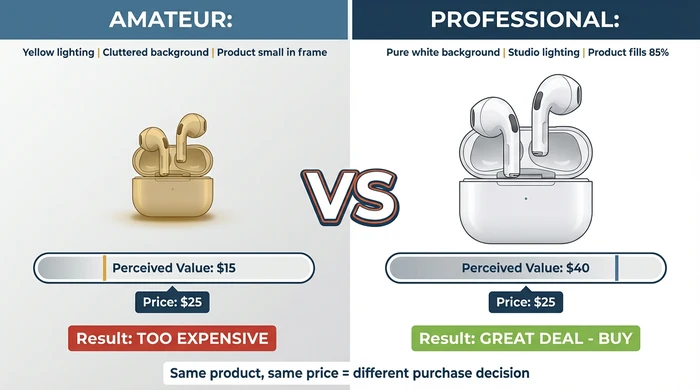
The same product, same price, but dramatically different perceived value based on image quality alone
Category-Specific Perceived Value Drivers:
Different product categories leverage different visual elements to increase perceived value:
- Apparel: Lifestyle images with models showing fit and style create aspiration. Customers don’t just buy the garment, they buy the lifestyle portrayed.
- Electronics: Clean presentation with proper lighting suggests quality engineering and attention to detail. Cluttered or dark images suggest cheap construction.
- Home goods: Styled room contexts showing products in aspirational settings increase perceived value by association with upscale interiors.
- Consumables: Professional food photography or supplement packaging shots convey quality and safety, critical factors in consumable purchasing decisions.
The perceived value mechanism is why “good enough” images underperform. Customers make split-second mental valuations. Your images create that valuation. Professional quality shifts the mental price upward, making your actual price seem attractive.
Image Types You Need For Maximum Conversions
Amazon provides 9 image slots per listing. The strategic principle is quality over quantity. Use 6-8 slots, with each image serving a distinct purpose. Redundant images dilute impact and increase bounce rate as customers scroll through irrelevant photos.
Strategic Slot Allocation:
Slot 1 (Main Image): Product-only on pure white background. This is your CTR driver in search results and sponsored ads. Optimize for thumbnail recognizability at 150x150 pixels. Choose the angle that makes your product most instantly identifiable when small.
Slot 2 (Lifestyle Context): Product shown in real-world use. This image answers two critical questions: “How big is it?” and “How do I use it?” For apparel, show a model wearing the product to demonstrate fit. For electronics, show the product in use or with size comparison objects. For home goods, show the product styled in a room context. This image builds emotional connection and demonstrates practical application.
Slot 3 (Feature Infographic): Key benefits highlighted with text overlays. For complex products, create an infographic showing technical specifications. For simple products, use close-ups of quality indicators (materials, texture, craftsmanship) with annotation arrows. This makes features scannable for customers who won’t read full descriptions.
Slot 4 (Alternate Angle): Different viewing perspective not visible in the main image. Show back view, side view, top-down, or packaging. This addresses customer uncertainty about product appearance from angles they can’t see in slot 1. For products with multiple components, show them separated or assembled.
Slot 5 (Size/Scale Diagram): Dimensional information with measurements. Include comparison to common objects (hand holding product, smartphone for scale, ruler showing dimensions). This is critical for furniture, apparel, accessories - any category where size confusion drives returns. Clear size information reduces return rates and negative reviews from surprised customers.
Slots 6-7 (Use Case Variety): Multiple application scenarios or before/after comparisons. Show how your product solves different problems or works in different contexts. For versatile products, demonstrate 2-3 use cases. For transformation products (cleaning supplies, beauty items), show before/after results if Amazon permits.
Slots 8-9 (Optional): Leave empty unless you have genuinely new information to convey. Most effective listings use 6-7 images strategically rather than forcing all 9 slots with redundant content.
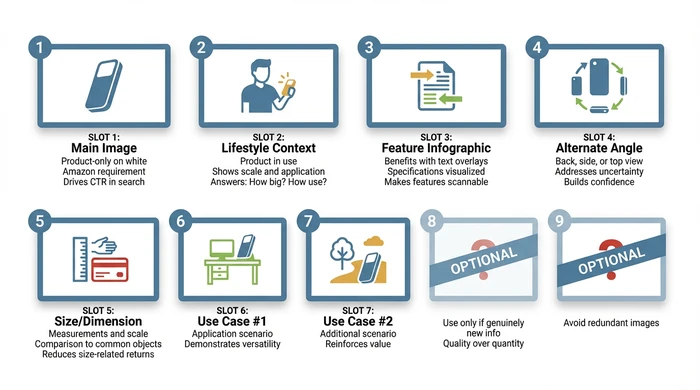
Strategic allocation of Amazon’s 9 image slots - each serving a distinct conversion purpose
Category-Specific Image Strategies
Generic image advice fails because different product categories require different visual approaches.
Apparel Products:
Your main image shows the garment on a white background (mannequin or flat lay). Slot 2 must show a model wearing the product - customers need to see fit, drape, and how the garment looks on a human body. Slot 3 shows fabric texture close-up so customers can evaluate material quality. Slot 5 is your size chart graphic showing measurements. Without this, you’ll have high return rates from fit issues. Slots 6-7 can show different styling options or the garment in different contexts.
Electronics:
Main image is clean product-only with professional lighting suggesting quality engineering. Slot 2 shows size comparison (next to smartphone, tablet, or hand for scale). Electronics often look larger or smaller than expected - address this early. Slot 3 is your specification infographic showing key features with labels. Slot 4 shows ports, buttons, or connectivity options customers need to verify compatibility. Slot 5 shows packaging contents (what cables and accessories are included).
Home Goods:
Main image is product-only. Slot 2 is your styled room context showing the product in an aspirational setting. This doesn’t just show scale, it shows lifestyle. Customers buying home decor are buying the feeling the room creates. Slot 3 shows material or texture close-ups (fabric weave, wood grain, metal finish). Slot 5 is your dimension diagram critical for furniture or anything that needs to fit a space.
Consumables (food, supplements, beauty):
Main image shows packaging clearly. Slot 2 shows serving suggestion or application demonstration. For food, show the product plated or in use. For supplements, show the bottle with size reference. Slot 3 is your nutritional information or ingredient highlights graphic. Customers in these categories care intensely about what’s inside. Slot 4 shows packaging from different angles so customers can read all label information.
Step-by-Step: Creating Images On Different Budgets
The right approach depends on your budget, product complexity, competition level, and timeline. There’s no single “best” method - there’s the best method for your specific situation.
Method 1: DIY Smartphone Photography (Under $50)
Best for: Simple products, low-competition categories, price points under $20, sellers with time but limited budget.
Equipment needed:
- Smartphone with 12MP+ camera (most phones from last 5 years qualify)
- White poster board or foam core ($2-3 at craft stores)
- Natural window light (indirect) or 2x existing desk lamps
- Free editing app (Snapseed or Lightroom Mobile)
Process:
Set up near a window that provides indirect natural light (not direct sunlight - that creates harsh shadows). Position your white poster board as background. Ensure it’s actually white, not cream or off-white. Place your product on the background with the product filling most of the frame.
Shoot 20-30 variations. Try different angles (front, 3/4 view, side). Try different distances (ensuring product always fills 85%+ of frame). Try different lighting positions (moving your setup to different window angles, or repositioning lamps).
Select your best 6-8 images covering: main product angle, a lifestyle context (ask a friend or family member to model or use the product), alternate angles, and detail shots.
Edit for consistency. Adjust brightness and contrast so the white background appears pure white. Correct white balance if your images have a yellow or blue color cast. Crop so the product fills 85% of the frame. Export at minimum 2000x2000 pixels.
Compliance check before uploading:
Use an RGB color picker tool (free online) to verify your background is actually 255, 255, 255. Visually inspect that no text is visible in your main image. Confirm the product fills 85%+ of frame.
Common DIY mistakes:
- Direct sunlight creating harsh shadows and blown-out highlights
- Yellow indoor lighting creating orange color cast
- Background not pure white (cream or gray shows in thumbnails)
- Product too small in frame reducing mobile visibility
- Inconsistent lighting across images making them look unprofessional when viewed together
Method 2: DIY DSLR Photography ($50-200)
Best for: Moderate complexity products, medium-competition categories, sellers willing to invest 10-20 hours learning photography basics.
Equipment needed:
- Entry-level DSLR or mirrorless camera (used market: $100-150)
- 50mm lens (often included or $50 used)
- White seamless background paper roll ($10-15)
- Basic 3-point lighting kit ($30-50 online)
- Free editing software (GIMP or Darktable)
Learning curve:
Expect to invest 10-20 hours learning camera basics. You need to understand aperture (controls depth of field), ISO (controls light sensitivity and noise), and white balance (ensures colors look accurate). Numerous free YouTube tutorials cover DSLR basics for product photography.
Process:
Set up 3-point lighting: key light (main light source at 45-degree angle), fill light (reduces shadows on opposite side), and backlight (separates product from background). This is the fundamental lighting setup professionals use.
Shoot in RAW format rather than JPEG. RAW files contain more image data allowing greater editing flexibility. You can fix exposure and white balance issues in post-processing that would be impossible with JPEGs.
Batch edit for consistency. All your images should have the same white balance, brightness, and contrast. Inconsistent editing makes your listing look amateurish.
This approach produces 7-8/10 quality results but requires significant time investment. If you’re launching multiple products or plan ongoing Amazon business, the time investment pays off. For a single product launch, professional photography may offer better ROI.
Method 3: Professional Photography ($200-500)
Best for: Complex products, high-competition categories, price points above $50, products requiring styling expertise (apparel, jewelry, food).
Finding photographers:
Search for “Amazon product photographer” or “e-commerce photographer” in your area. Review portfolios looking specifically for product work with white background compliance. Generic portrait or wedding photographers often lack product photography expertise.
Request quotes from 3-5 photographers. Negotiate package pricing (cost per product vs cost per image). Per-product pricing is usually better value if you need 8-12 images per item.
What to provide:
Prepare a brief before the shoot: competitor examples showing the quality level you want to match or exceed, a detailed shot list (specific angles and contexts you need), brand guidelines if you have them, and a clear product description so the photographer understands what they’re shooting.
Photoshoot day:
Clean your product thoroughly. Dust, fingerprints, and scratches are magnified in professional photography. Be available during the shoot for questions. If possible, review shots as they’re taken to ensure you’re getting the angles and contexts you need.
Expected deliverables:
Request 8-12 fully edited images per product. Specify you need pure white background files (RGB 255,255,255) for the main image. Ask for both web-optimized versions (2000x2000 pixels, compressed for web) and source files for future editing.
Professional photography produces 9/10 quality results. For products in competitive categories or with price points above $50, this investment typically pays for itself in increased conversion rate within the first month.
Method 4: AI-Generated Enhancement (Varies)
Best for: Enhancing existing product photography, creating lifestyle backgrounds, supplementing rather than replacing traditional photography.
When AI works:
AI tools excel at background removal and replacement. If you’ve photographed your product but the background isn’t pure white, AI can remove it and replace with perfect white. AI can generate lifestyle contexts around your photographed product, placing it in room scenes or use scenarios that would be expensive to shoot traditionally.
When AI fails:
AI struggles to create photorealistic main product images from scratch. The technology isn’t yet reliable enough for Amazon’s demanding customers who scrutinize zoom details. AI-generated images often have subtle artifacts or inconsistencies that undermine trust. For categories where authenticity is critical (food, beauty, supplements), AI-generated product images can trigger skepticism.
Recommended hybrid approach:
Photograph your product professionally or with quality DIY technique. This gives you an authentic, detailed product image. Then use AI tools (Canva’s background remover, Adobe Firefly, Pebblely, Flair AI) to remove backgrounds, generate lifestyle contexts, or create infographic elements.
This combines the photorealistic quality customers expect for the product itself with the creative flexibility and cost savings of AI for backgrounds and contexts.
Tools to explore:
- Canva: AI background replacement and removal (subscription ~$13/month)
- Adobe Firefly: Generative fill for extending or modifying backgrounds
- Pebblely: Product-specific AI for creating lifestyle backgrounds
- Flair AI: AI-powered product photography staging
Use AI for secondary image slots (2-9), not for your main image. Amazon customers have high expectations for image quality, and AI artifacts in your main thumbnail will hurt click-through rate.
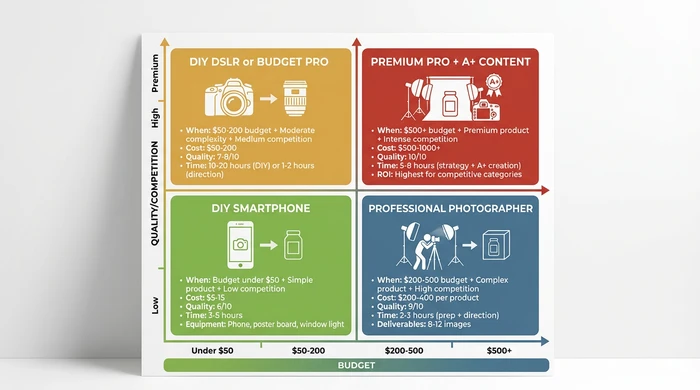
Choose your image creation method based on budget, product complexity, and competition level
Common Image Mistakes That Kill Sales
Poor images manifest as two distinct performance problems: low click-through rate (CTR) and low conversion rate (CVR). Understanding which problem you have determines the fix.
Diagnostic: Low Click-Through Rate Problems
Symptom: Your listing appears in search results (you have impressions) but few customers click to view details.
Image-related causes:
Poor main image quality is the primary culprit. If your main image is blurry, dark, or poorly lit, it loses to competitors in thumbnail comparison. Wrong angle selection means your product isn’t recognizable at 150x150 pixel thumbnail size. If the product is too small in the frame (under 85% coverage), it becomes invisible in mobile thumbnails. Your main image must win the split-second thumbnail comparison against competitors in the same search results.
Also check: Product title start (on mobile screens, only the first 60-80 characters display next to your thumbnail). Price competitiveness. Star rating visibility. These factors work together with your main image to drive CTR.
Image fixes:
Reshoot your main image with professional lighting or better natural light. Test different product angles - what looks artistic at full size may be unclear at thumbnail size. Ensure your product fills 85% or more of the frame. View your main image at 150x150 pixels on a smartphone screen and compare it against top competitor thumbnails in actual search results. If your product isn’t more recognizable than competitors at that tiny size, you need a different approach.
Diagnostic: Low Conversion Rate Problems
Symptom: Customers click your listing to view details but don’t complete the purchase.
Image-related causes:
Lack of multiple viewing angles prevents customers from fully evaluating the product. They can see the front but have questions about the back, sides, or top. No lifestyle context means customers can’t envision the product in use or assess its scale. Missing feature details (close-ups of quality indicators, materials, construction) leaves questions unanswered. Unclear size and scale creates uncertainty about whether the product fits their needs.
Also check: Bullet point quality (bullet points should work synergistically with images - images show, bullets explain). Review content (negative reviews about aspects not shown in images). Price versus perceived value gap.
Image fixes:
Add 360-degree viewing angles covering front, back, sides, top, and bottom where relevant. Include lifestyle images showing the product being used by a person or in a room context. Create size comparison graphics (product next to common objects, dimensional diagrams with measurements, hand holding product for scale). Add texture and material close-ups showing quality indicators customers use to evaluate value.
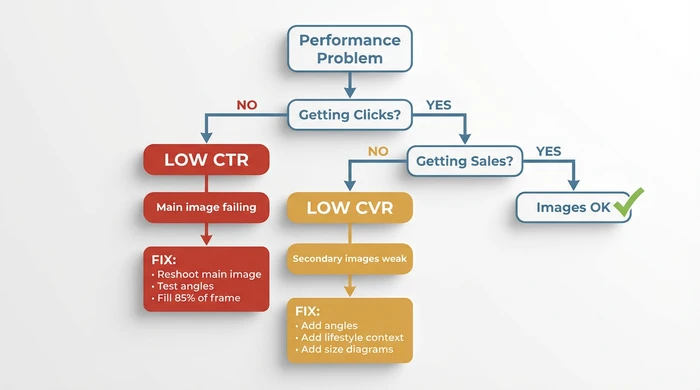
Diagnostic framework connecting image problems to specific performance metrics and fixes
The 6 Most Common Image Mistakes
1. Using all 9 slots with redundant angles:
More images don’t equal better results. Three nearly identical product angles from slightly different positions waste slots. Each image must provide genuinely new information. Redundant images increase bounce rate as customers scroll through irrelevant photos looking for the information they need.
2. Lifestyle-only approach with no product detail:
Some sellers go overboard with lifestyle images showing the product in beautiful contexts but never providing clear product-only detail shots. Customers need both emotional connection (lifestyle) and rational evaluation (detail). A listing with only lifestyle images underperforms because customers can’t assess actual product quality.
3. Using generic stock photos:
Customers spot stock photography. If your “lifestyle” image shows a generic model with generic products, it damages trust. If your main image is obviously stock photography of a similar but not identical product, Amazon may remove it and customers will definitely notice. Authenticity matters for building purchase confidence.
4. Ignoring mobile display optimization:
Images optimized for desktop viewing often fail on mobile where 70% of sales occur. Text in infographic images becomes illegible at mobile sizes. Products shot artistically look confusing in mobile thumbnails. Test every image on an actual smartphone screen at the sizes customers will see them.
5. Poor main image angle selection:
Choosing the most “artistic” angle rather than the most recognizable angle. Your main image isn’t art - it’s a thumbnail in a grid of competing thumbnails. Front view or 3/4 view usually works best because customers can instantly identify what the product is. Top-down shots or extreme angles may look impressive at full size but fail at thumbnail size.
6. Skipping A/B testing:
Assuming your first image choice is optimal without data validation. If you have Amazon Brand Registry, you can A/B test different main images systematically. Without Brand Registry, you can still test sequentially - update your main image, monitor CTR changes over 2-3 weeks, revert if performance declines. Many sellers discover their second or third image option performs 20-40% better than their first choice.
Image Creation Decision Tool
Use this decision framework to select your optimal approach based on your specific situation.
| Your Situation | Recommended Method | Est. Cost | Quality Score | Time Investment |
|---|---|---|---|---|
| Budget under $50 + Simple product + Low competition | DIY Smartphone | $5-15 | 6/10 | 3-5 hours |
| Budget $50-200 + Moderate complexity + Medium competition | DIY DSLR or Budget Pro | $50-150 | 7-8/10 | 10-20 hours (DIY) or 1-2 hours (Pro direction) |
| Budget $200-500 + Complex product + High competition | Professional Photographer | $200-400 per product | 9/10 | 2-3 hours (preparation + direction) |
| Budget $500+ + Premium product + Intense competition | Premium Professional + A+ Content | $500-1000+ | 10/10 | 5-8 hours (strategy + direction + A+ creation) |
| Existing photos need enhancement | AI Tools (Canva, Pebblely) | $0-30/month | Varies (7-9/10 for backgrounds) | 2-4 hours learning + application |
Which Images Do I Need? Image Slot Allocation Guide
| Image Slot | Image Type Required | Purpose & Reasoning |
|---|---|---|
| Slot 1 (Main Image) | Product-only on pure white background (RGB 255,255,255) | Drives CTR in search results. Amazon requirement. No text, logos, people, or props. Product fills 85% of frame. This is your thumbnail in search - must be instantly recognizable. |
| Slot 2 | Lifestyle/In-Context Image | Shows scale and real-world use. Apparel: model wearing product. Electronics: size comparison or in-use scenario. Home goods: styled room context. Answers "How big is it?" and "How do I use it?" |
| Slot 3 | Feature Infographic or Close-up | Highlights key benefits with text overlays. Complex products: infographic showing specifications. Simple products: close-up of quality indicators (materials, texture, craftsmanship). Makes features scannable. |
| Slot 4 | Alternate Angle or Packaging | Shows perspective not visible in main image. Back view, side view, top-down, or packaging/unboxing. Addresses customer uncertainty about product appearance from different angles. |
| Slot 5 | Size/Dimension Diagram | Reduces returns from size confusion. Dimensional diagram with measurements, comparison to common objects (hand, smartphone), or scale reference. Critical for furniture, apparel, accessories. |
| Slot 6 | Use Case Variation or Comparison | Demonstrates versatility. Multiple application scenarios, before/after comparison, or product vs alternatives. Shows product solves multiple problems or outperforms competitors. |
| Slot 7 | Additional Use Case or Detail | Reinforces value proposition. Another use scenario, warranty/guarantee visual, or material/texture close-up. Use only if genuinely adds new information. |
| Slots 8-9 | Optional - Leave Empty Unless Essential | Quality over quantity. Only use if images add genuinely new information. Redundant images dilute impact and increase bounce rate as customers scroll through irrelevant photos. Most effective listings use 6-7 slots strategically. |
Mobile Optimization Strategies
70% of Amazon purchases occur on mobile devices, yet most sellers optimize images for desktop viewing. This creates a fundamental disconnect between how you test your images and how most customers actually see them.
The Mobile Reality:
Your main image appears as a 150x150 pixel thumbnail in mobile search results. Product detail page images display smaller on mobile screens. Text in infographic images must remain legible at mobile sizes. The swipe interface on mobile means most users don’t scroll past the first 4 images unless the initial images compel them to continue.
Thumbnail Visibility Test:
Before finalizing your main image, export it at 150x150 pixels. View this tiny version on your smartphone. Ask yourself honestly: “Can I instantly tell what this product is?” If you hesitate even for a second, your main image fails mobile optimization. Reshoot with the product filling more of the frame, choose a simpler angle, or increase contrast between product and background.
Text Legibility in Infographics:
If you’re creating infographic images with text overlays (allowed in slots 2-9), use minimum 18-20 point font. Test readability on an actual smartphone screen. Text that’s perfectly readable on desktop often becomes illegible blur on mobile. Avoid text-heavy designs - use large, bold annotations with minimal words.
Swipe-Friendly Image Order:
Mobile users swipe through images horizontally. Place your most important images in slots 1-4 because many users don’t swipe beyond the fourth image. The critical sequence is: main product (slot 1), lifestyle context (slot 2), key features or infographic (slot 3), alternate angle or size reference (slot 4). If users only see these four images, they should have enough information to make a purchase decision.
Load Speed Consideration:
Image file size affects mobile page load time, especially for customers on cellular data. Amazon’s mobile app is optimized, but unnecessarily large files still cause delays. Compress your images without quality loss using tools like TinyPNG or ImageOptim. Balance quality against file size. A 2000x2000 pixel image shouldn’t exceed 200-300KB after compression.
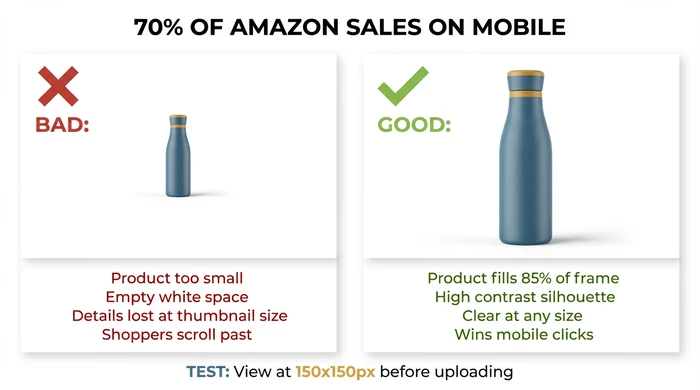
Test your main image at 150x150 pixels on a smartphone screen before uploading - this is how 70% of customers first see your product
Testing and Optimization After Launch
Image optimization isn’t a one-time task. Markets evolve, competitors improve their images, and customer preferences shift. Systematic testing identifies improvement opportunities.
A/B Testing for Brand Registry Users
If you have Amazon Brand Registry, you can access Amazon’s A/B testing feature (called “Manage Your Experiments”). This allows systematic testing of main image variations.
Test variables worth exploring:
Product angle: Does front view outperform 3/4 view? Does your product look better slightly rotated? Lighting style: Does bright white studio lighting outperform slightly warmed lighting? Product staging: For products where props are allowed in main image (though generally prohibited), does clean product-only outperform minimal staging? Color emphasis: For products available in multiple colors, which color variation drives highest CTR as main image?
Success metrics:
Click-through rate increase indicates better thumbnail appeal. If your new main image gets 15% more clicks from the same number of impressions, it’s winning the thumbnail comparison in search results. Conversion rate increase indicates better detail page persuasion. Sometimes an image that gets slightly fewer clicks actually converts better because it sets accurate expectations.
Testing timeline:
Run tests for 2-4 weeks minimum to achieve statistical significance. Longer in categories with seasonal fluctuations. Don’t conclude after 2 days of data - you need sufficient sample size to know if differences are real or random variation.
Manual Optimization for Non-Brand Registry Sellers
Without Amazon’s built-in A/B testing, you can still test sequentially.
Process:
Update your main image to a new variation. Note the exact date. Monitor your traffic and conversion metrics for 2-3 weeks in Amazon Business Reports. Compare performance to the 2-3 weeks before the change. If CTR or conversion rate improved, keep the new image. If performance declined, revert to the original.
This approach is less scientifically rigorous than simultaneous A/B testing (external factors like seasonality or competitor changes can affect results), but it’s better than assuming your first choice is optimal.
Competitor monitoring:
Screenshot top competitor images quarterly. Identify emerging trends in your category. If competitors start using lifestyle images more heavily, test whether adding lifestyle content improves your performance. If the category shifts toward infographic-heavy approaches, test whether feature callouts resonate with your audience.
Customer feedback mining:
Read your product reviews looking for image-related comments. “I wish I could see the back” means you need an alternate angle. “I didn’t realize how small it was” means your size reference is inadequate. “The color looks different than the photo” means your white balance is off. Customer complaints are free feedback on image gaps.
Seasonal refreshes:
Update lifestyle images for holiday contexts. A product shown in Q4 with holiday decorations or gift-giving scenarios can outperform generic lifestyle images. Add seasonal use cases (showing a product used at the beach in summer, or indoors during winter). Refresh for style trends annually - lifestyle images from 5 years ago look dated and reduce perceived value.
Variations and Exceptions
Standard image optimization guidance applies to most sellers, but several scenarios require modified approaches.
If selling in multiple Amazon marketplaces:
Amazon’s technical image requirements (white background, pixel dimensions, 85% coverage) are consistent globally. However, cultural context for lifestyle images varies significantly. A lifestyle image showing the product in a typical American home may not resonate with Japanese customers. Models’ ethnicity, room styling, and use contexts should reflect the local market you’re targeting. If you sell in US, UK, and Germany, consider creating market-specific lifestyle images for slots 2-9 while keeping the same compliant main image across all marketplaces.
If your product has multiple color or size variations:
Your parent listing shows all variations, but each child ASIN can have unique images showing that specific variant. Your main image should clearly differentiate variants - a red product photo for the red version, blue for blue. Don’t use the same main image across all color variations forcing customers to read fine print to know which they’re buying. Size variations benefit from comparison images showing the different sizes together so customers can visualize the differences.
If your category has specific image restrictions:
Jewelry and watches have category-specific requirements often requiring or prohibiting model-worn shots. Apparel has guidelines around appropriate model presentation. Check Amazon Seller Central category-specific image guidelines before shooting. What’s allowed for electronics may be prohibited for supplements or restricted categories.
If using Amazon’s Virtual Product Bundles:
Bundle main images must show all included items. If you’re bundling three products together, your main image needs all three products visible. Individual product images from the standalone listings may not accurately represent what customers receive. Create custom bundle photography showing everything included.
If you have Brand Registry and A+ Content access:
A+ Content appears below your standard listing and allows up to 16 additional images in different formats. These use different dimensions (970 pixels width recommended) and different purposes (deeper storytelling, brand building, detailed comparison charts). A+ Content images complement your main 9 listing images rather than duplicating them. Use A+ Content for brand story, detailed how-to guides, comparison tables, and extended lifestyle photography that would be excessive in the main listing.
For guidance on optimizing other listing elements like bullet points and product titles, those work synergistically with images to drive conversions.
FAQ
What are Amazon’s main image requirements for product listings?
Amazon requires main images (Slot 1) to have a pure white background with RGB color values of 255, 255, 255, minimum 1,000 pixels on the longest side (2,000+ recommended), product filling 85% or more of the frame, JPEG file format preferred, and no text, logos, watermarks, or people visible. Secondary images (Slots 2-9) can include infographics, lifestyle contexts, and text overlays.
How many images should I use for my Amazon product listing?
Use 6-8 of Amazon’s 9 available image slots strategically. Each image must serve a distinct purpose: main product image (Slot 1), lifestyle context (Slot 2), feature infographic (Slot 3), alternate angle (Slot 4), size diagram (Slot 5), and use case variety (Slots 6-7). Don’t use all 9 slots with redundant images as this dilutes impact and increases customer bounce rate.
Do lifestyle images increase Amazon sales?
Yes, lifestyle images showing the product in use increase conversions when they help customers understand product scale, usage context, or benefits. However, balance is critical. Listings lacking product-only detail images (close-ups, multiple angles) underperform because customers can’t evaluate actual quality. Aim for 40% lifestyle context and 60% product detail for most categories.
Can I use AI to create Amazon product images?
AI tools work best for enhancing existing product photography (background replacement, lifestyle context generation, infographic elements) rather than creating main product images from scratch. The hybrid approach is most effective: photograph the product professionally, then use AI (Canva, Adobe Firefly, Pebblely) to generate lifestyle backgrounds and contexts. Main product images created entirely by AI often lack the photorealistic detail Amazon customers expect.
What size should Amazon product images be?
Minimum 1,000 pixels on the longest side is required, but 2,000+ pixels is strongly recommended to enable Amazon’s zoom functionality, which is a proven conversion driver. Larger images (up to 10,000 pixels) are accepted and provide even better zoom detail, but file size should be balanced against mobile page load speed (compress without quality loss).
How do I know if my images are hurting sales?
Use a diagnostic approach. Low click-through rate (CTR) despite impressions indicates a main image problem (poor thumbnail appeal in search results). Low conversion rate (CVR) despite clicks indicates secondary image problems (lack of angles, missing lifestyle context, unclear details). Use Amazon’s Business Reports to track these metrics in your Seller Central account, then address image issues accordingly.
Is professional photography worth the cost for Amazon listings?
The decision depends on product complexity, competition level, and price point. Professional photography ($200-500) is worth it when product complexity requires styling expertise, competition is high (you need differentiation), or price point is above $50 (investment is small percentage of potential revenue). Simple products in low-competition niches with under $20 price points can perform well with quality DIY smartphone photography.
Conclusion
Amazon product images serve dual purposes: technical compliance (getting your listing approved and visible) and conversion optimization (turning views into sales). The perceived value mechanism explains why image quality investment directly correlates with revenue. Professional images increase buyers’ mental valuation of your product, making your price point seem attractive and creating purchase intent.
Start with compliance to avoid rejection delays. Ensure your main image has a pure white RGB 255,255,255 background, minimum 2,000 pixels on the longest side, and your product filling 85% of the frame. Then invest in quality based on your budget tier. DIY smartphone photography works for simple products in low-competition categories. Professional photography is justified for complex products, competitive categories, or price points above $50. Finally, optimize through testing. A/B test main image variations if you have Brand Registry, or monitor performance after sequential changes.
Images work synergistically with bullet points and product titles. While images drive perceived value and provide visual proof, bullet points address emotional motivations and logical justifications. For sellers looking to optimize bullet points using psychology-first principles similar to the perceived value concept discussed here, tools like WhyBuyIt analyze customer emotional triggers before generating copy.
Audit your current product images using the diagnostic framework (CTR and CVR analysis in your Amazon Seller Central reports). Identify your budget tier and product complexity level. Follow the appropriate creation method checklist from this guide. Remember that image optimization is not a one-time task. Plan for seasonal refreshes, competitor monitoring, and continuous testing to maintain your conversion advantage. The sellers who treat images as strategic assets rather than compliance checkboxes consistently outperform those who upload whatever photos they have available.