Amazon Ads Report Preset Bookmarklet
A free bookmark that ticks the right columns when you build an Amazon Ads report. Pick a report type and the dimensions and metrics tick for you.
Drag this button to your browser's bookmarks bar
This is the code that the bookmarklet runs:
// Preset picker for the Amazon Advertising report configuration page
// (unified reporting, dimensions/metrics options tree).
//
// Install: open bookmarklet/install.html in Chrome and drag the
// "Report preset" link to the bookmarks bar (or add a bookmark manually with
// the javascript: line at the bottom of this file as the URL).
// Use: open the report configuration page, run the bookmarklet, pick the
// report type by number. It ticks the preset's dimensions, switches to the
// Metrics tab by itself, ticks the metrics, then shows one summary alert
// listing anything it could not find.
//
// Page quirks this works around (learned live, 2026-10-06):
// - options carry one of two data-test-id schemes: option-root-<name> or
//   option-wrapper-<name>; both are matched.
// - Year/Month/Day granularity checkboxes stay disabled while "Date range"
//   is ticked, so it is unticked first.
// - the metrics tree lists one name many times and some copies are disabled
//   (programmatic clicks on disabled checkboxes do nothing); the first
//   enabled copy is clicked.
// - some options (Budget currency) are always ticked and disabled; any
//   already-checked copy counts as done.
// UI names differ from CSV column names: UI "Campaign" exports Campaign ID +
// Campaign name (+ status columns if Amazon includes them), UI "Day" exports
// Day of Month. Presets mirror newFormatReports/report-column-checklist.md.

const PRESETS = {
  "Search term": [
    // shared dimensions
    "Campaign", "Ad group", "Year", "Month", "Day", "Budget currency",
    // report dimensions
    "Search term", "Advertised product", "Target", "Targeting", "Targeting match type",
    // metrics
    "Impressions", "Clicks", "Total cost", "Sales", "Purchases",
    "Purchases from clicks", "Units sold",
  ],
  "Advertised product": [
    "Campaign", "Ad group", "Year", "Month", "Day", "Budget currency",
    "Advertised product", "Advertised product SKU",
    "Impressions", "Clicks", "Total cost", "Sales", "Purchases", "Units sold",
  ],
  "Converted product": [
    "Campaign", "Ad group", "Year", "Month", "Day", "Budget currency",
    "Advertised product", "Converted product", "Product relevance",
    "Purchases", "Sales", "Units sold",
  ],
  "Targeting": [
    "Campaign", "Ad group", "Year", "Month", "Day", "Budget currency",
    "Advertised product", "Target", "Targeting", "Targeting match type",
    "Impressions", "Clicks", "Total cost", "Sales", "Purchases", "Units sold",
  ],
  "Search term impression share": [
    "Search term",
    "Impressions", "Clicks", "Sales", "Purchases",
    "Impression share", "Impression share rank",
  ],
  "Top-of-search impression share": [
    "Advertised product",
    "Impressions", "Clicks", "Sales", "Top-of-search impression share",
  ],
  "Placement": [
    "Campaign", "Year", "Month", "Day",
    "Placement classification", "Advertised product",
    "Impressions", "Clicks", "Total cost", "Sales", "Purchases",
  ],
};

const GRANULARITY = ["Year", "Month", "Week", "Day", "Hour"];

function checkboxes(name) {
  const n = CSS.escape(name);
  return document.querySelectorAll(
    `[data-test-id="option-root-${n}"] input[type=checkbox],` +
    `[data-test-id="option-wrapper-${n}"] input[type=checkbox]`
  );
}

// Tick one option; true when it ends up ticked (clicked now, already on, or
// forced on), false when no clickable copy exists on this view.
function tickOne(name) {
  for (const cb of checkboxes(name)) {
    if (cb.getAttribute("aria-checked") === "true") return true;
    if (cb.disabled) continue;
    cb.click();
    return true;
  }
  return false;
}

function tabButton(label) {
  for (const el of document.querySelectorAll("button"))
    if ((el.textContent || "").trim() === label) return el;
  return null;
}

// Poll until the option tree of the switched-to tab renders (max ~6s).
function waitFor(name, timeoutMs) {
  return new Promise(resolve => {
    const t0 = Date.now();
    const iv = setInterval(() => {
      if (checkboxes(name).length) { clearInterval(iv); resolve(true); }
      else if (Date.now() - t0 > timeoutMs) { clearInterval(iv); resolve(false); }
    }, 150);
  });
}

async function run() {
  const keys = Object.keys(PRESETS);
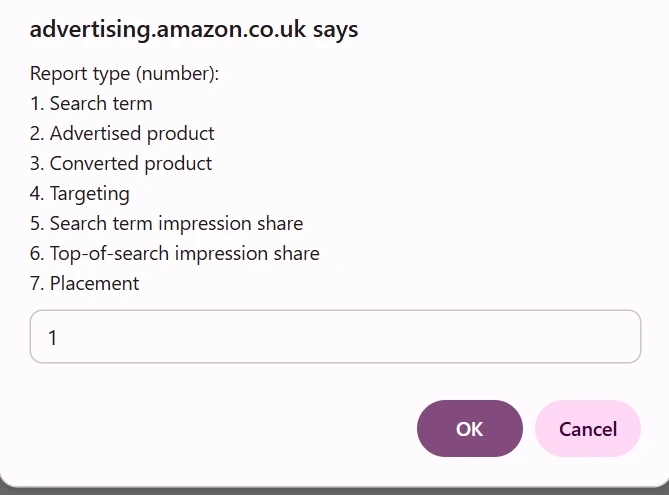
  const pick = window.prompt(
    "Report type (number):\n" + keys.map((k, i) => `${i + 1}. ${k}`).join("\n")
  );
  if (pick === null) return;
  const idx = parseInt(pick.trim(), 10) - 1;
  if (isNaN(idx) || idx < 0 || idx >= keys.length) { alert("No such number."); return; }
  const list = PRESETS[keys[idx]];

  // Name the report after the chosen type. React ignores a plain .value
  // assignment, so use the native setter and fire an input event. Only the
  // default "... - MM/DD/YYYYTHH:MM:SS" name is touched.
  const nameBox = document.getElementById("report-name-form:report-name-control-component-0");
  const stamp = nameBox && nameBox.value.match(/(\d\d\/\d\d\/\d{4}T\d\d:\d\d:\d\d)$/);
  if (stamp) {
    Object.getOwnPropertyDescriptor(HTMLInputElement.prototype, "value").set.call(nameBox, `${keys[idx]} - ${stamp[1]}`);
    nameBox.dispatchEvent(new Event("input", { bubbles: true }));
  }

  if (list.some(n => GRANULARITY.includes(n)))
    for (const cb of checkboxes("Date range"))
      if (!cb.disabled && cb.getAttribute("aria-checked") === "true") cb.click();

  const ticked = [];
  let missing = [];
  for (const name of list) (tickOne(name) ? ticked : missing).push(name);

  let tabNote = "";
  if (missing.length) {
    const target = checkboxes("Impressions").length ? "Dimensions" : "Metrics";
    const btn = tabButton(target);
    if (btn) {
      btn.click();
      const probe = missing.find(n => !GRANULARITY.includes(n)) || missing[0];
      if (await waitFor(probe, 6000))
        missing = missing.filter(n => { if (tickOne(n)) { ticked.push(n); return false; } return true; });
      else
        tabNote = `\n\n${target} tab did not load in time.`;
    }
  }

  let msg = `${keys[idx]}: ticked ${ticked.length} of ${list.length}.`;
  if (missing.length) msg += `\n\nStill missing (tick manually): ${missing.join(", ")}`;
  if (tabNote) msg += tabNote;
  alert(msg);
}

run();
Doublecheck that it is 100% safe by copying the code above and pasting it into your favourite AI model, and ask it what the code does and if it is safe to run.
How to get to the report page
Follow these steps in Amazon Ads. Run the bookmarklet on the last page.
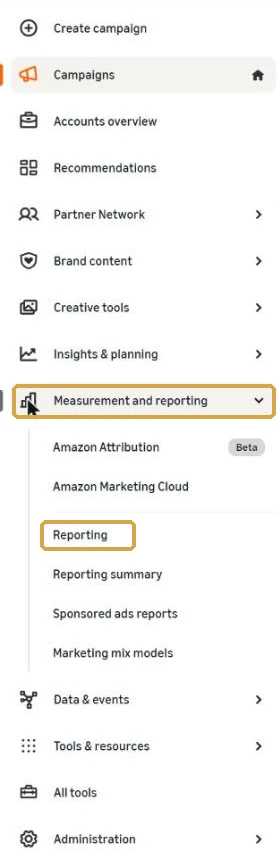
1. Open the Reporting page
Click the bar chart icon in the left menu. This is “Measurement and reporting”. Then click Reporting.
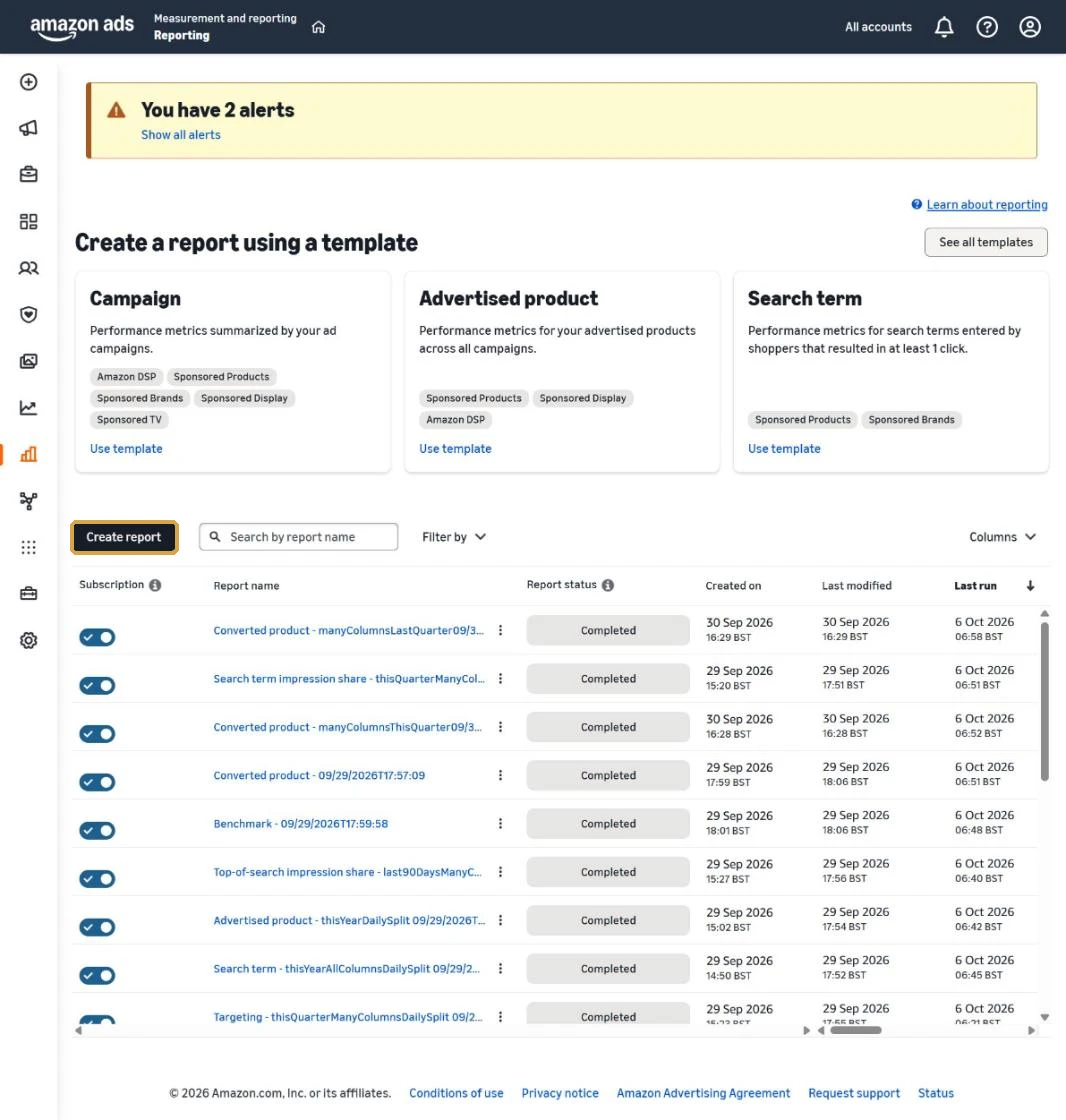
2. Click Create report
On the Reporting page, click the dark Create report button above the list of reports.
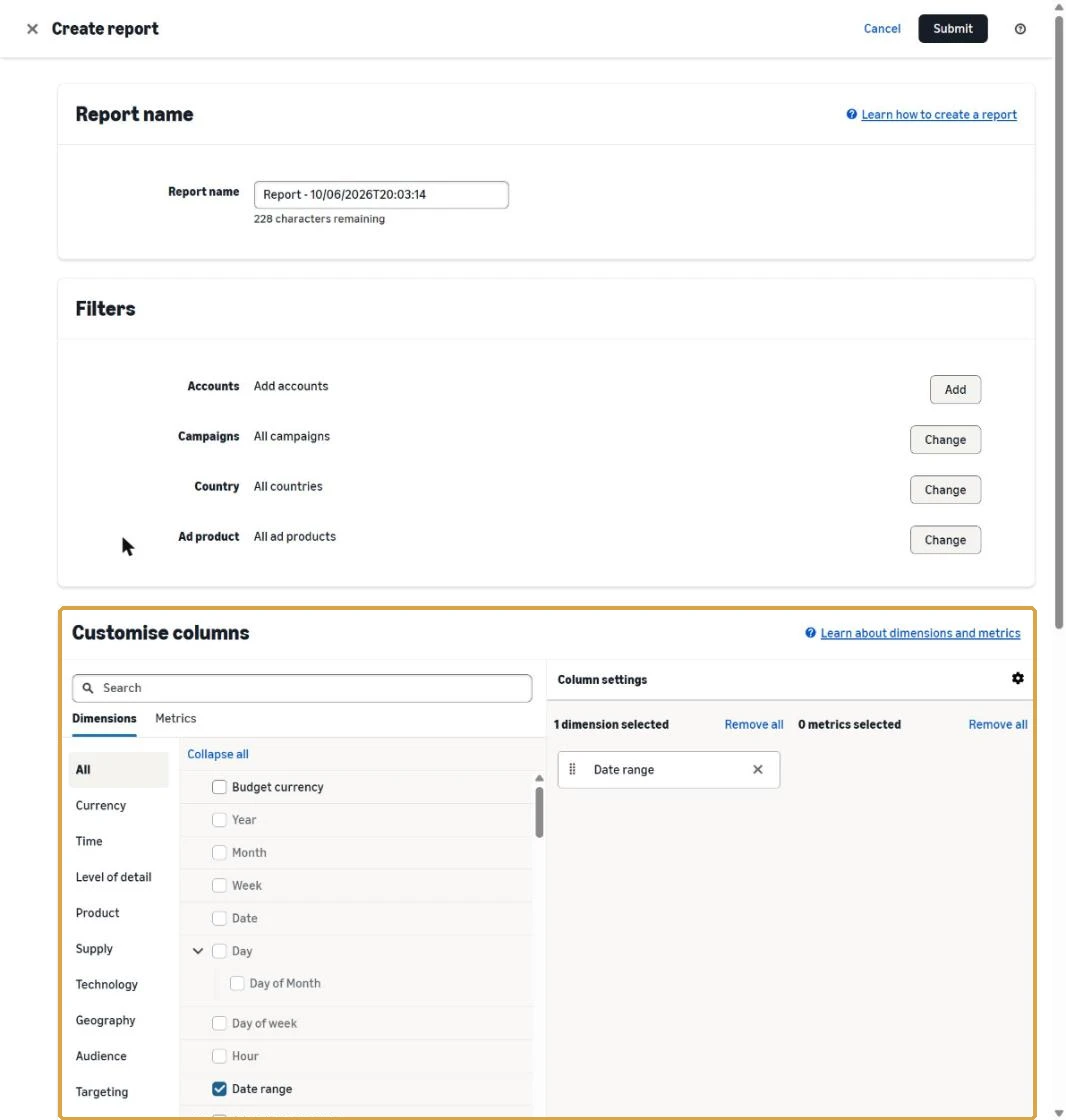
3. Open the Customise columns box
The Create report page opens. Scroll down to Customise columns.
4. Click the bookmark and pick a report
Click the Amazon Report Settings bookmark in your bookmarks bar. A box lists the report types. Type the number of the report you want and click OK.
5. Read the result
A second box says how many columns the bookmarklet ticked. Click OK. The bookmarklet also renames the report to the report type you picked, followed by the date and time.
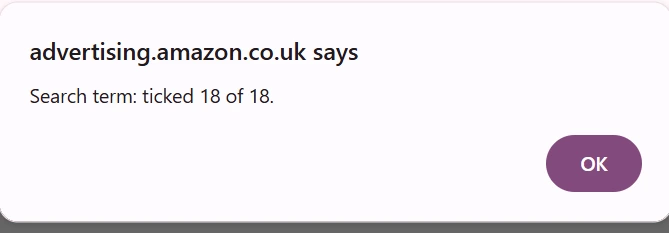
If the box lists columns as missing, tick those columns by hand.
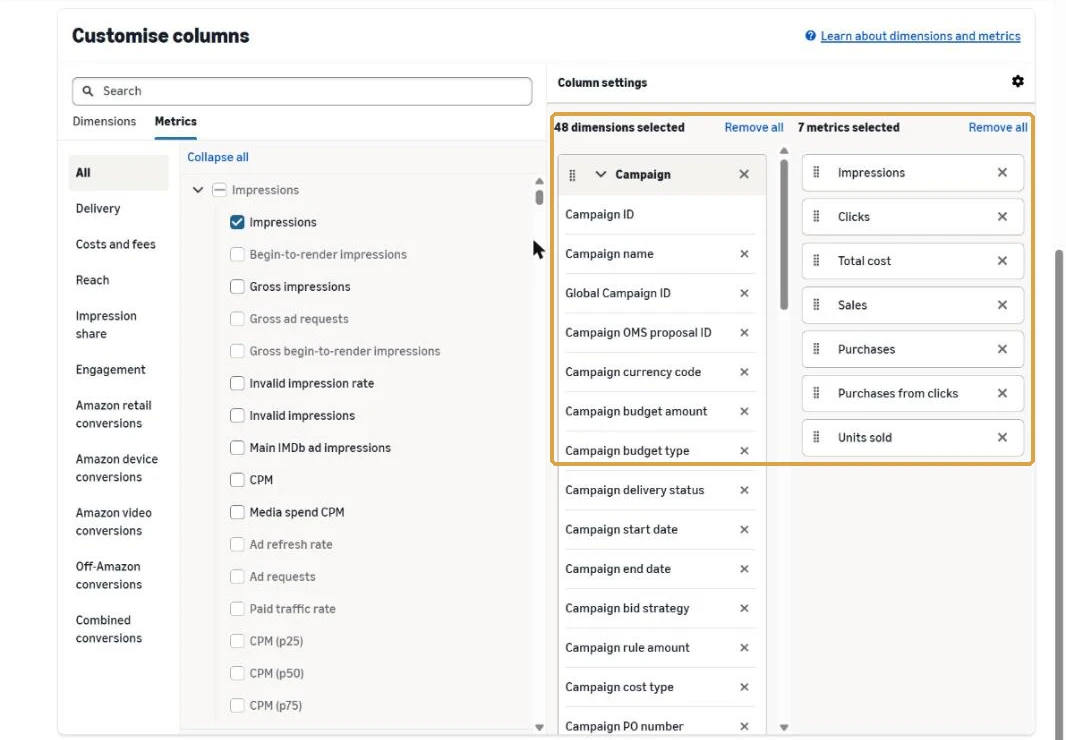
6. Check the ticked columns
The Column settings box on the right lists every dimension and metric the bookmarklet ticked. The number of each shows at the top. Check the list, then set the date range and click Submit.